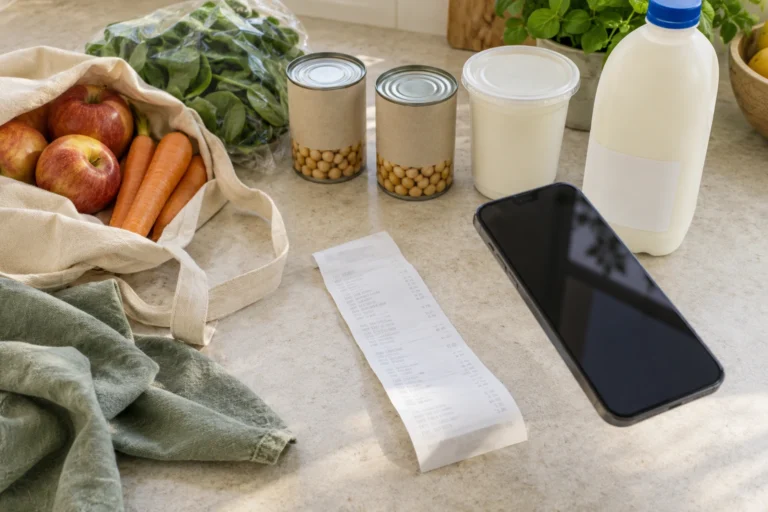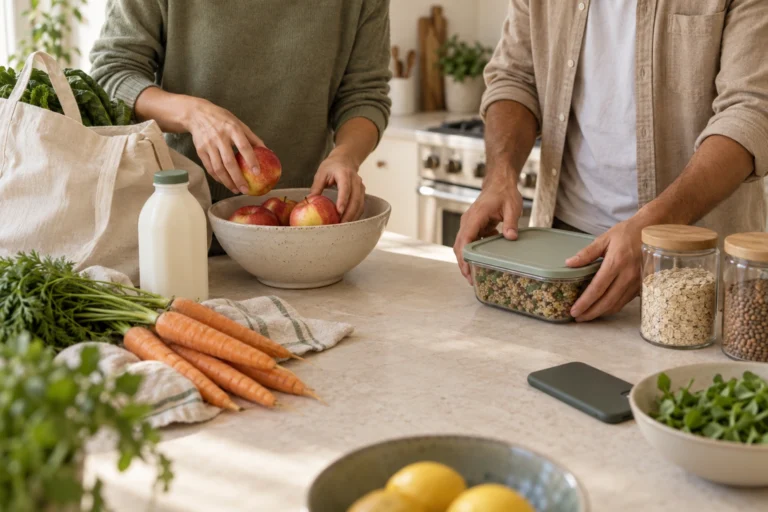
‘Milk’ is on the list, so you buy it and tick it off, which gets the milk through checkout. The useful next question is what happens when it reaches your fridge.
QR Pantry’s Shopping connects those stages: food you’re running out of, ingredients you need, purchases in the trolley and food back in your kitchen. You’ll get the most from it by treating the last step as part of the shop, while the packs and their dates are right in front of you.
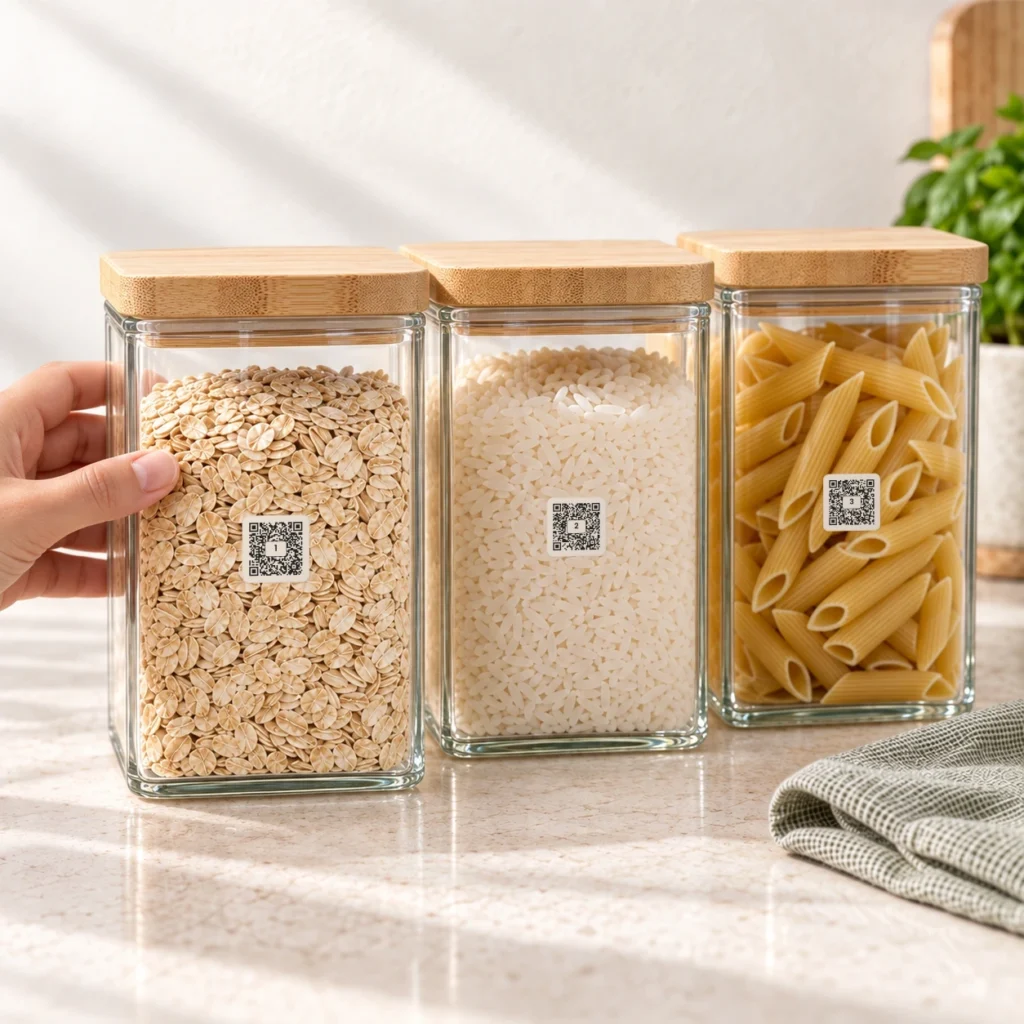
Let the kitchen answer before the supermarket does
Start with the food you’re already using. When a staple is running low, open its item in Food and add it to the shopping list with the trolley control. When a reusable labelled container is used up, you can keep its label for a refill and add the food to the list in the same flow.
Then add what the next meals require. Pro’s Shop the week can bring missing ingredients from the meal planner into the list. You can also type the things you need yourself. The shopping list and its restock flow are available on the free plan; automatic store links and the planner’s Shop the week are Pro features.
Use Add anything to your list for the rest. As you type, QR Pantry offers matching food you already have before previous purchases and a new line. Pause on those suggestions. A matching item might be nearly empty, or it might be the full packet you were about to buy again. The app can show you what you recorded; you make the buying decision.
For example, you might need chickpeas for dinner, milk that’s almost gone and bin bags. Check the chickpeas you already own, add the milk item as a restock, and type bin bags as a new line. Food and household supplies can live on the same shopping list without both becoming food records.
Make every line answer ‘how much?’
A vague list passes the decision to whoever happens to be standing in the aisle. Open a line and set its quantity, unit and note. ‘Greek yoghurt, plain, 1 kg’ is much more useful than ‘yoghurt’. Put the detail that affects the purchase in the note: pack size, preferred brand or a recipe-specific requirement.
QR Pantry brings matching needs together where it can. That’s helpful when several recipes call for the same ingredient, but a combined line still deserves a look. Different units or loosely named ingredients need your judgement. Two recipes asking for tomatoes may mean fresh tomatoes in one and tinned tomatoes in the other.
Keep the title specific enough to distinguish the food, and the note specific enough to buy it. ‘Tinned chopped tomatoes’ is a better title than ‘tomatoes’ if that’s what the recipe requires. Before leaving home, compare the total needed with the amount already available and buy the shortfall.
Shopping groups lines by aisle. You can move a line to another aisle if its suggested place doesn’t fit, and choose A to Z or By meal when that view makes more sense. Usuals lets you add regularly bought items without typing them again. Use it as a shortcut after checking what you have, rather than as a standing order to buy more.
Ticks mean it's in the trolley
Tick a line when you’ve actually picked it up. It moves under In the trolley, leaving the rest of the list easier to see. If the product goes back on the shelf, untick it. If you buy a different amount, correct the line before finishing so the amount recorded at home matches the amount purchased.
Pro can show store links for your chosen supermarket. Use those links to find products, then check the actual product, size and availability before buying. A search result is a useful route into the store, not confirmation that a substitute is the ingredient you meant.
Aisle grouping helps you navigate, but food safety still matters. Collect chilled and frozen food towards the end, use an insulated cooler bag for the trip home and put food away promptly. The NSW Food Authority’s shopping guidance explains these practical steps. Finish the app review after cold food is safely stored.
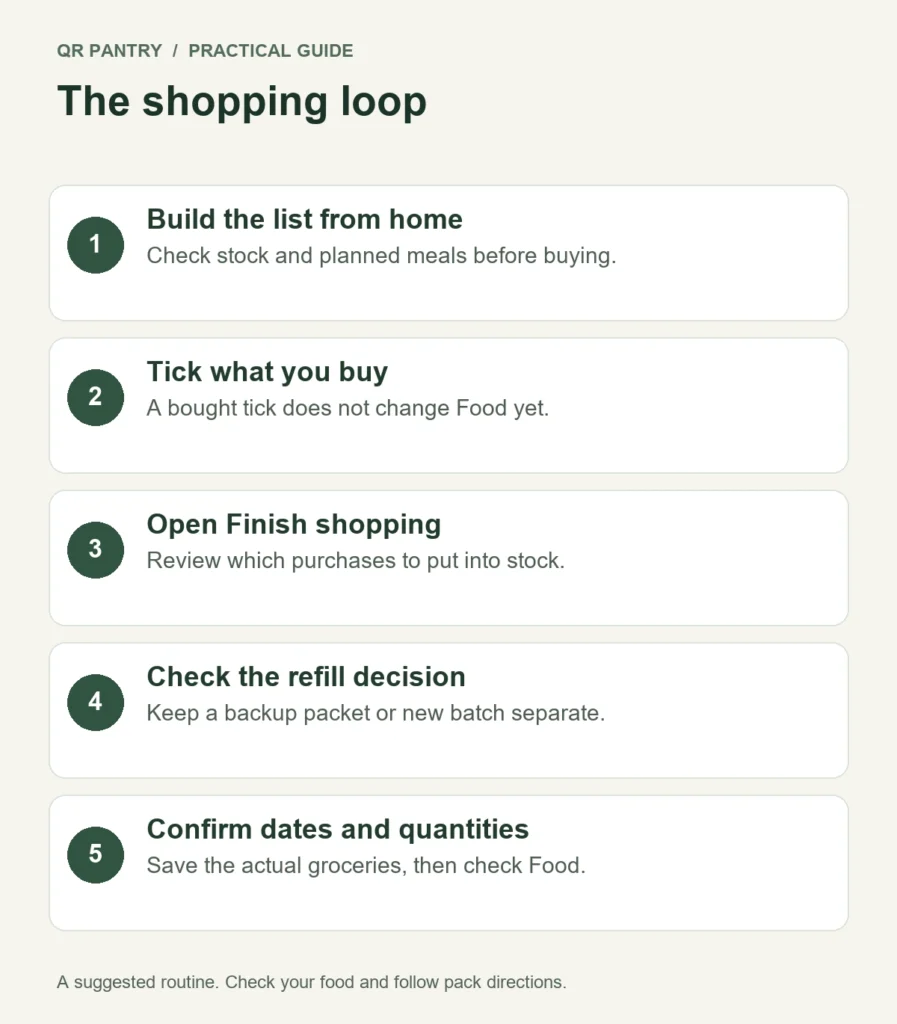
Finish shopping is the decision that closes the loop
When you’re ready, choose Finish shopping. The review groups what you’ve ticked into Back in the pantry, New in your food and Just done. Read those groups as proposed actions. This is where you decide whether a purchase refills an existing item, becomes a new food item or simply leaves the shopping list.
The checkbox beside each line means ‘put this into my food as well’. Existing food items and new food lines start checked. Household supplies normally start unchecked. Adjust the choices to what you actually brought home.
| In the final review | If checked | If unchecked |
|---|---|---|
| Existing food item | Refills that item with the purchased quantity | Comes off the list; the existing food isn't refilled |
| New food line | Creates a food item | Comes off the list without a food record |
| Household supply | Can be added to Food if deliberately selected | Marked done without becoming food |
If something wasn’t bought after all, choose Not yet and untick it on the shopping list. Unchecking it inside the final review will still finish that shopping line. It won’t keep the purchase on the list for your next trip.
A backup packet isn't a refill yet
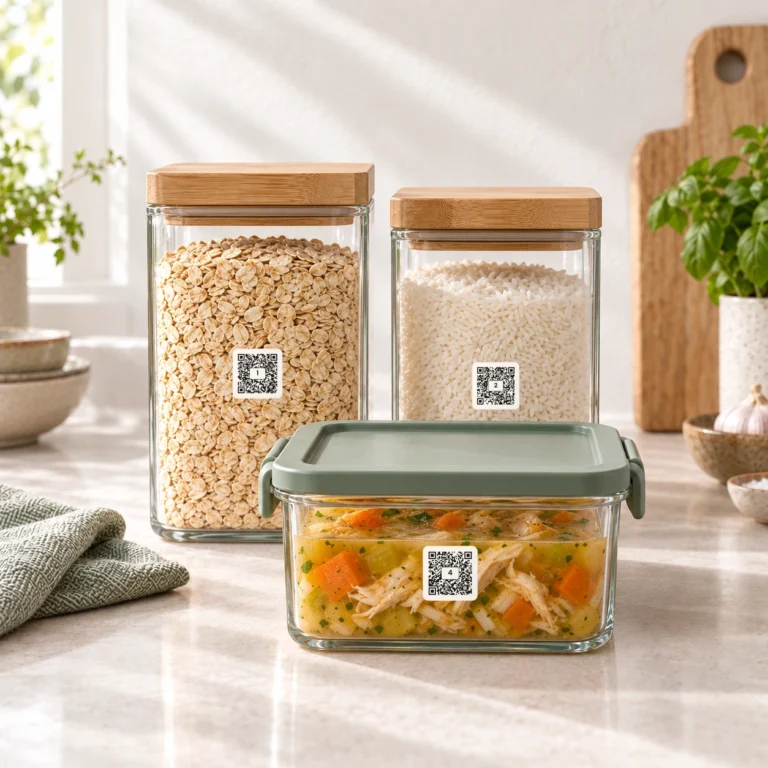
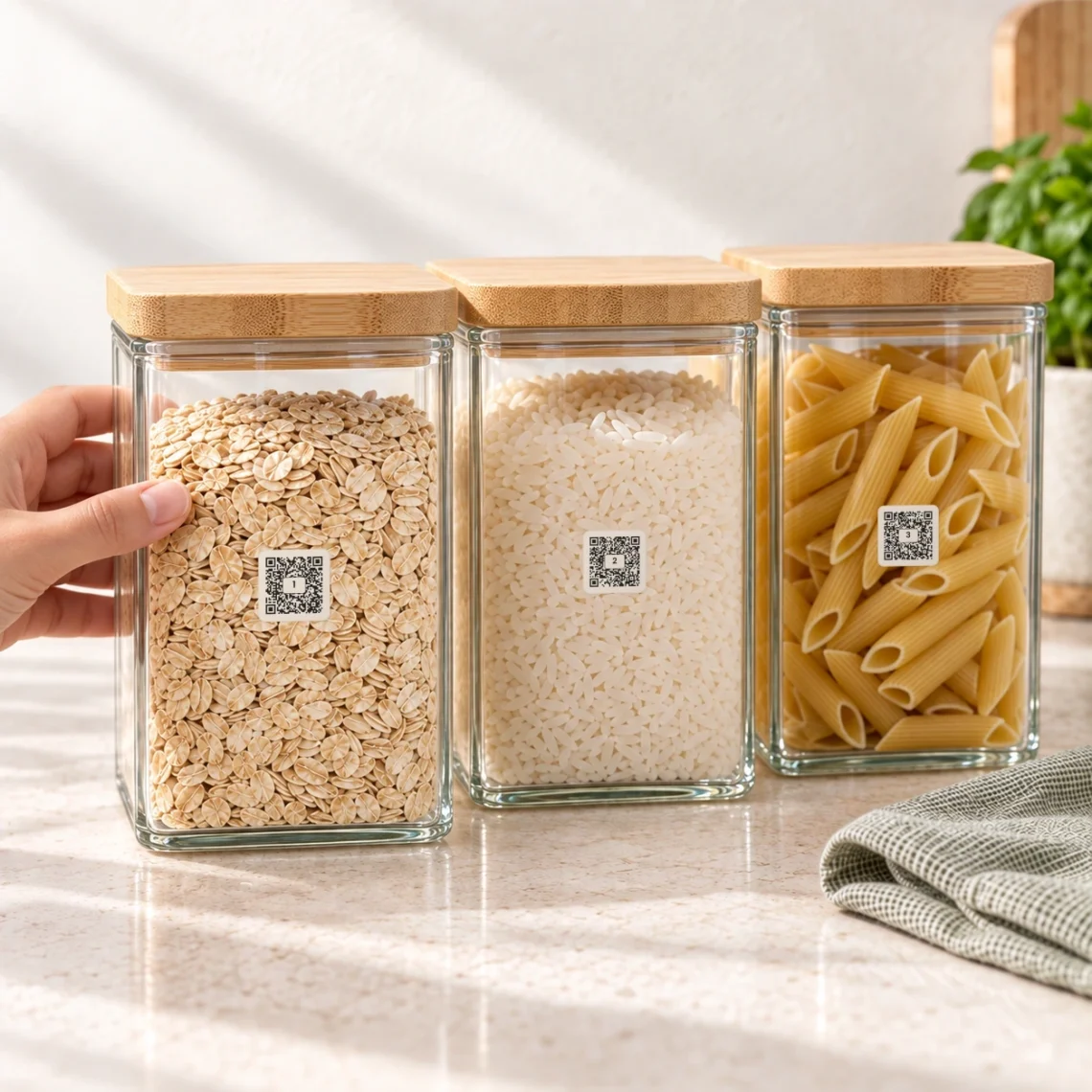
An empty rice jar and a half-full rice jar need different treatment. If the jar is empty and you pour the new rice into it, refilling its existing record makes sense. If you’ve bought an unopened backup while the jar still holds the old batch, keep those batches distinct.
For that backup, uncheck the existing item’s refill in the final review, finish the line, then add the unopened purchase separately in Food. This preserves the older jar’s amount and date. Update the jar when you eventually empty and refill it. Letting a restock replace an active jar’s record would lose the older contents’ information.
The same judgement applies to marked-down packs and purchases with different dates. Record them separately when they need separate decisions. One neat combined number is less useful than knowing which pack should be used first.
Unpack the dates as well as the groceries
The finish review can leave food undated, which is useful when you’ll copy dates from the packs as you unpack. It also offers typical dates for each kind of food. Those are rule-of-thumb estimates. Choose them deliberately and check them against the actual food; they can’t determine safety or replace a printed use-by date.
Open Food after finishing. Check the new entries’ quantities, storage spaces and dates, starting with the purchases that need attention soonest. If you put something somewhere different from its suggested location, change the space. The list has finished its job; the inventory now needs to describe your real kitchen.
Keep use-by and best-before distinct. Don’t eat food after its use-by date, and follow the pack’s storage and opening directions. The NSW Food Authority’s date-mark guide explains the difference. Reminders help you remember dates you’ve recorded; they don’t certify the food.
If you’re also using receipt import, choose which route creates each purchase’s food record. Don’t automatically add the whole receipt after Finish shopping has already created those items. Use the receipt to check what you bought, and import only purchases that still need recording. Two entries for one packet make the next list harder to trust.
The best sign that the loop is working comes before the next shop: you can open Food, see what came home and build a list around what has actually changed.